
Run an agent until its work is done
This guide sets up an agent that works through a list of tickets on its own and stops when the list is empty. You need the Flightdeck app, Claude Code signed in on your Mac, and a project with tickets in Jira or Trello (connect them first).
It takes three pieces: a work bucket that says which tickets, a job that says what the agent does with each one, and the job's timeline, which points the job at the bucket.
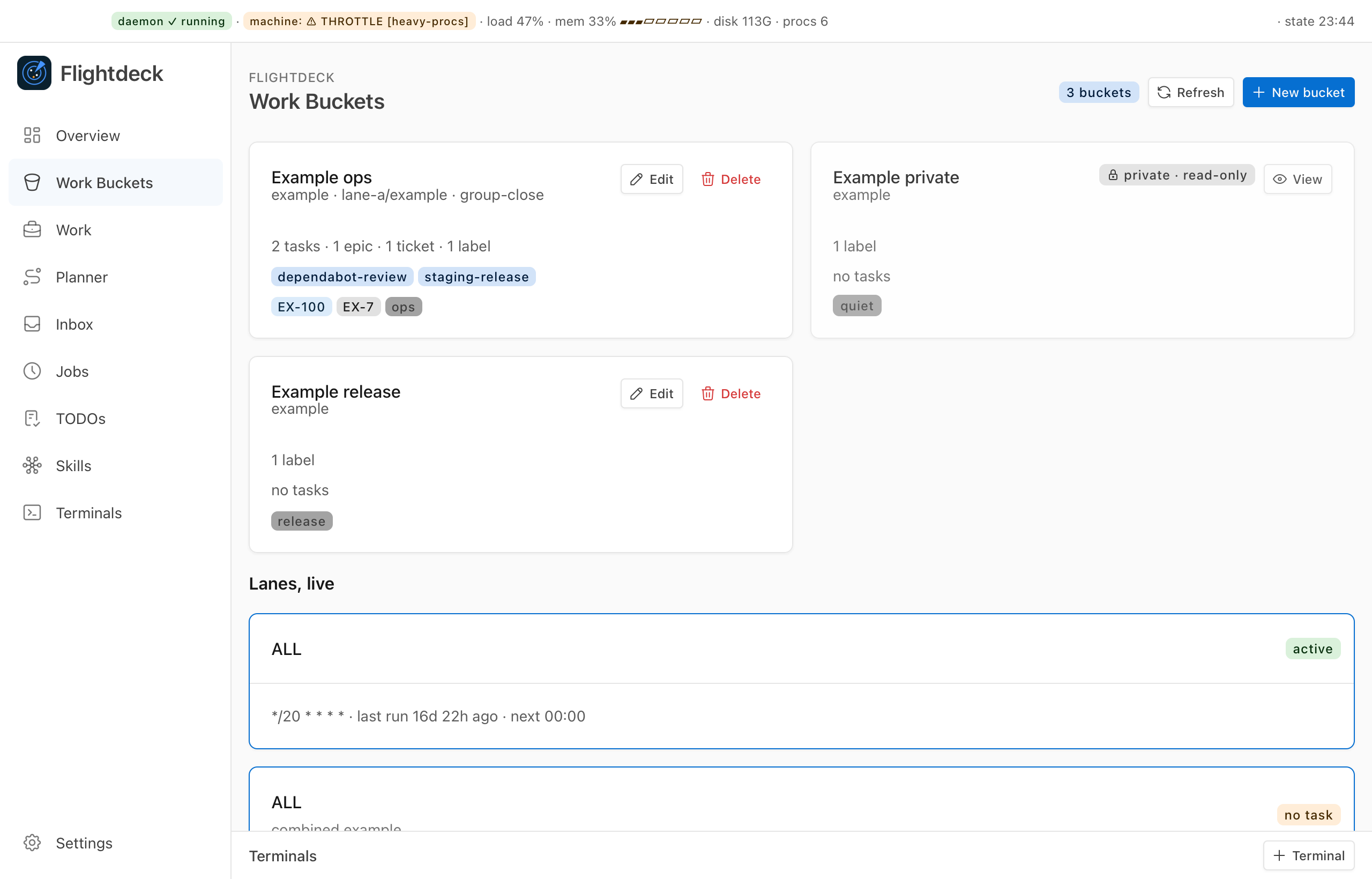
1. Make a bucket of work
- Open Work Buckets and click New bucket.
- Give it a Name and pick the Project its tickets live in.
- Add the work: choose a kind (Ticket, Epic, Label or Plan), enter its key or name, and click Add. Repeat for each one. For Jira you can also add a JQL clause.
- Click Create bucket.
The bucket is a markdown note in your workspace, so you can also edit it by hand.
2. Create the job
Open Jobs and click New job.
Under Kind, choose Run until done.
Set Runners (1 to 5) for how many agents work side by side, and Start each one for how many minutes apart they start.
Under Start, keep By hand only. (Start at… starts it once at a time you pick; Start every… starts it on a schedule.)
Fill in Name, Description and Timeout (seconds), the limit for each session.
Choose a Profile:
- Work runs the agent with your Claude Code hooks and settings, in auto permission mode, in a fresh git worktree of the Repo you name.
- Narrow gives it only the tools you list under Allowed tools.
Write the Prompt. Tell the agent to take its work from Flightdeck and report each item back:
textTake the next item with `flightdeck job next`, finish it, open a pull request, then report it with `flightdeck job done`. If you can't take an item now, give it back with `flightdeck job pass`.Click Create job. A new job starts Off.
A work job runs code as you
A Work profile job can do anything you can do in that repository. Read the prompt before you turn it on.
3. Point the job at the bucket
- On the job's card, click Details, then open the Timeline tab.
- Click Add, pick your bucket, and click Save timeline.
The timeline can only be edited while the job is Off. With more than one bucket, each one starts at an item count you choose, so a second bucket can wait until the first is partly done.
4. Turn it on and start it
- Flip the job's switch to On. Nothing runs yet.
- Click Start.
The same from the command line, with the job's id:
flightdeck job enable <id>
flightdeck job start <id>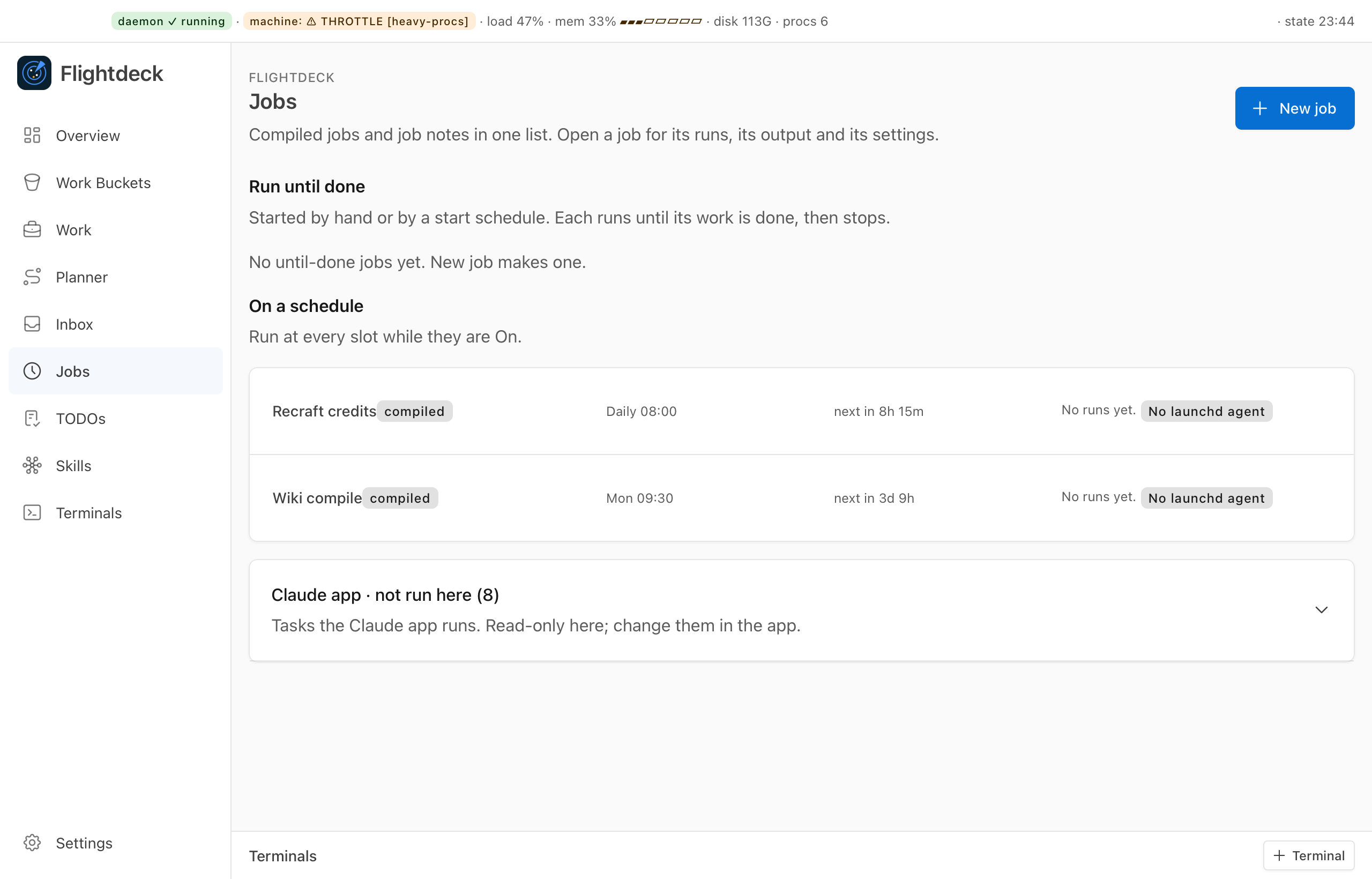
5. Watch it work
The job's card under Run until done shows where it is: Running 2 of 2, how many items are left, and Done with the time once it finishes. Details opens the job's runs, each with its outcome, a short status line and the session's final text. A question an agent can't answer alone shows up in Needs You.
When it stops
- The work runs out. Each runner asks for the next item. When no runner gets one, the job is done.
- You stop it. Click Stop, or run
flightdeck job stop <id>. Sessions already running finish their item, and no new one starts. - A runner keeps failing. After three failed sessions in a row, that runner stops and the job shows up in Needs You.
To have a finished job start again by itself when new work lands in its buckets, turn on Wake on new work in its settings.